Quick Catch User Guide

Accessing Quick Catch

To access Quick Catch, go to https://sjpr-online.com/. You will need to enter your login credentials on this page. If you’ve forgotten your password, there is an option to reset it by clicking “Forgot Password”.

Features Available After Login

Upon logging into Quick Catch, users have access to the following pages:

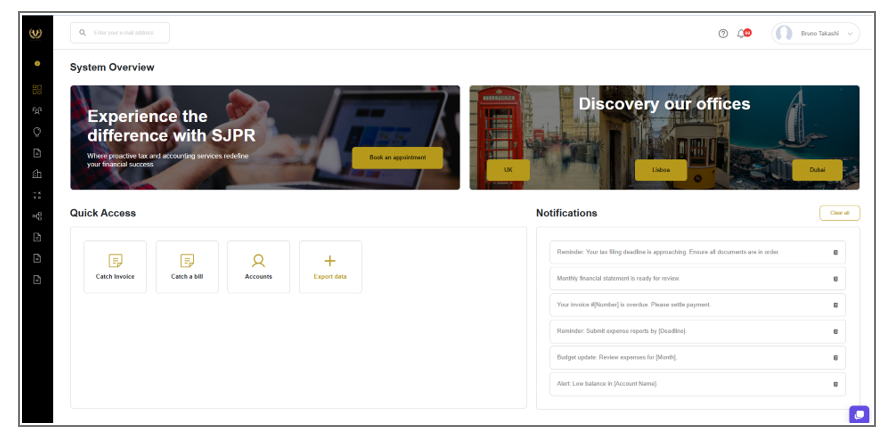
1. Main Dashboard

The initial dashboard provides direct access to: Catch Invoice – for capturing invoices Catch a Bill – for capturing bills Accounts – for profile and account settings

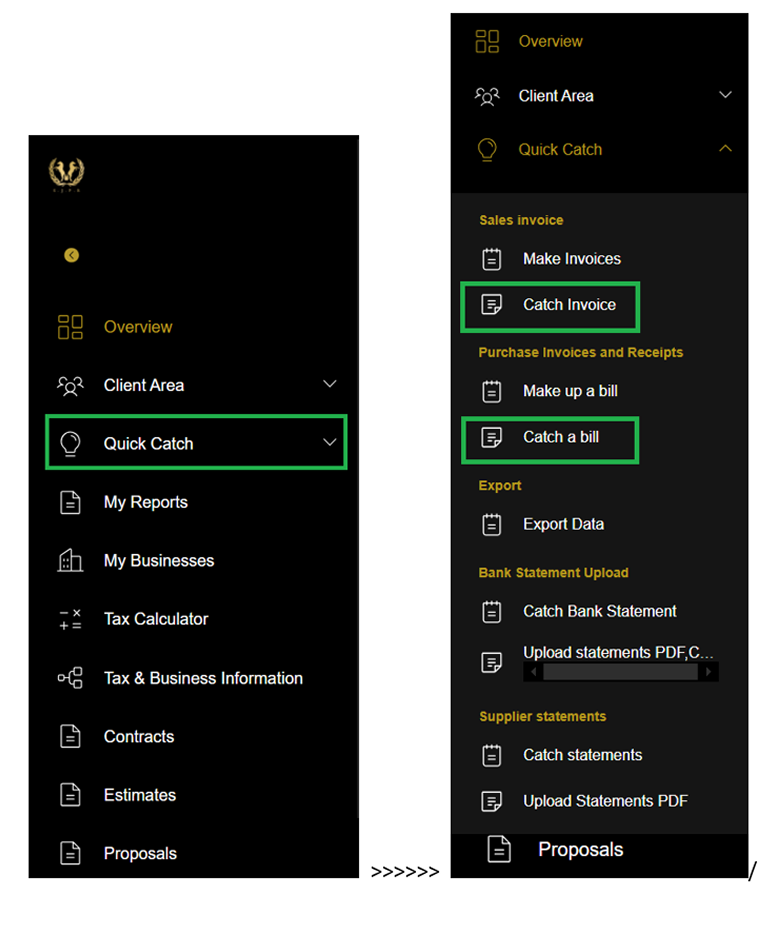
2. Quick Catch > Catch Invoice

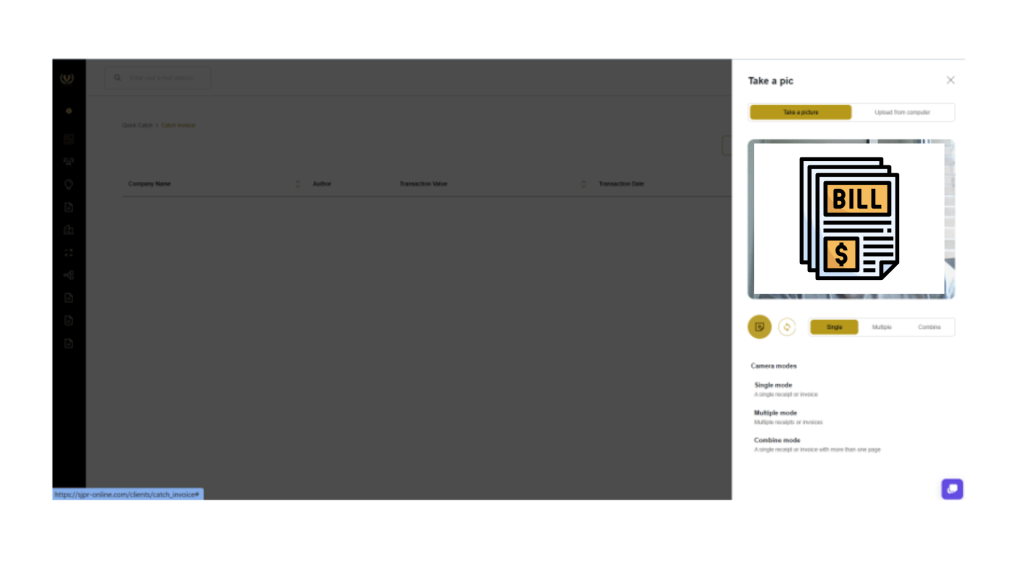
This function allows users to take a photo of an invoice (bill).

After capturing, Quick Catch will process and record the invoice details for easy access and record-keeping.

3. Quick Catch > Catch a Bill

Similar to the Catch Invoice function, this allows users to take a photo of a bill. Quick Catch will process and store the bill’s details for future reference.

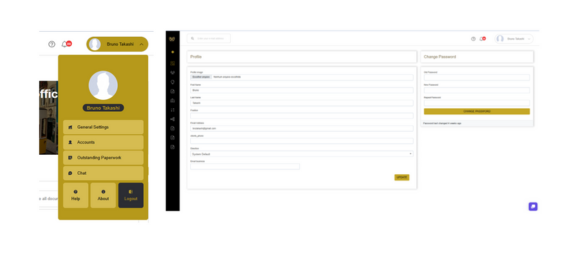
4. Top Menu > Accounts

Under the Accounts section in the top menu, users can:

Edit profile information, ensuring their details are accurate and up-to-date.
Change their account password, enhancing security.

Navigation and Functionalities

This guide provides a comprehensive overview of the features available in Quick Catch, designed to simplify the client’s experience and ensure easy navigation of each function. It aims to streamline the process and make all tools accessible and intuitive.
Side Menu Access

Currently, the only available features on the side menu are found under Quick Catch. These include the Catch Invoice and Catch a Bill functionalities, as well as access to Accounts for managing user settings.

Consult our experts to address your questions and concerns with confidence.

© 2024 SJPR – All Right Reserved

© 2024 Todos os direitos reservados SJPR